Layout Pattern
Gantt / Project Plan
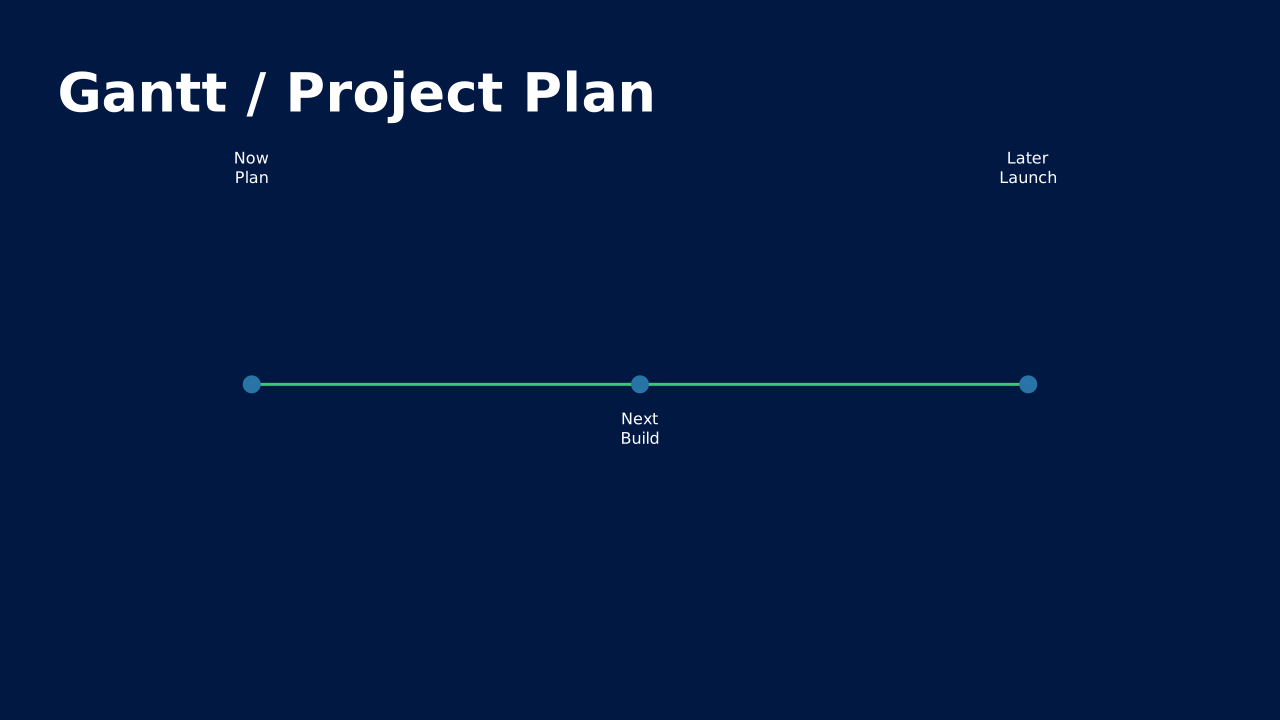
Horizontal bar chart of tasks across a timeline. The canonical project-status slide.
How to Use It
Horizontal bar chart of tasks across a timeline. The canonical project-status slide. OPF placeholders: title, timeline.
Content Zones
Try dynamic composition
Explore how a text slide reflows as you change its content and shape. These examples use OPF’s shared composition rules; the copied document includes your choices.
All sample text fits within its content areas.
View the complete OPF example
{
  "$schema": "https://openpresentation.org/schema/opf/v1",
  "name": "Dynamic composition example",
  "design": {
    "dimensions": {
      "widthInches": 13.333333333333334,
      "heightInches": 7.5
    }
  },
  "slides": [
    {
      "title": "Let the content find its space",
      "composition": {
        "mode": "auto"
      },
      "blocks": [
        {
          "text": "Start with the decision. State what the audience should understand or do."
        },
        {
          "text": "Show the evidence. Give each supporting idea enough space to be read."
        },
        {
          "text": "Make the next step clear. Keep the action specific and easy to remember."
        }
      ]
    }
  ]
}
Composition rules and examples as JSON · Pagination rules and example JSON
Related Layouts
Similar OPF layout slugs with matching content types, spatial patterns, or presentation use cases.
Business Strategic
Roadmap
Strategic timeline showing planned initiatives across phases or quarters. Communicates direction and commitment.
/layouts/roadmap
Business Strategic
Pricing Table
Tiered options in columns with feature comparisons. Makes your offering and value tiers crystal clear.
/layouts/pricing-table
Visual Storytelling
Process Flow
Step-by-step sequence with arrows or connectors. Shows how something works, from input to output.
/layouts/process-flow
Visual Storytelling
Timeline
Horizontal or vertical progression showing events, milestones, or phases in chronological order.
/layouts/timeline
Business Strategic
Action Plan
Table of actions with owner, due date, and status. Turns conversation into commitments.
/layouts/action-plan
Business Strategic
Assumptions & Dependencies
Lists the conditions this plan depends on. Makes the fragile parts of a strategy explicit.
/layouts/assumptions-dependencies
OPF Config
layouts:gantt-project-plan{
"$schema": "https://openpresentation.org/schema/opf/v1",
"name": "PPTX.gallery — layouts/gantt-project-plan",
"tags": [
"gallery:layouts/gantt-project-plan"
],
"slides": [
{
"id": "gallery-preview-1",
"layout": "gantt-project-plan",
"title": "Gantt / Project Plan",
"timeline": {
"events": [
{
"when": "Now",
"what": "Plan"
},
{
"when": "Next",
"what": "Build"
},
{
"when": "Later",
"what": "Launch"
}
]
},
"design": {
"contentBox": false,
"contentAlignment": "left",
"titleAlignment": "left",
"contentDirection": "horizontal"
}
}
],
"catalogs": {
"layouts": {
"records": [
{
"$schema": "https://openpresentation.org/schema/opf-layout/v1",
"id": "gantt-project-plan",
"name": "Gantt_Project_Plan",
"label": "Gantt / Project Plan",
"summary": "Horizontal bar chart of tasks across a timeline. The canonical project-status slide.",
"description": "Horizontal bar chart of tasks across a timeline. The canonical project-status slide.",
"tags": [
"Timeline",
"Schedule",
"Projects"
],
"master": "Gallery",
"masterSlideIndex": 45,
"groupHash": "9c1396430b3c1a49758bb6db96fd296fc24381d4cb888df725500f2d2cdbcc5d",
"groupDefault": true,
"contentType": "Timeline",
"contentMultiple": "1x",
"contentAlignment": "Left",
"contentBox": false,
"contentTypeChartPrimary": "None",
"contentTypeImageFill": "None",
"contentTypeListBullet": "None",
"contentTypeListHeading": false,
"slideTitle": true,
"slideTitleAlignment": "Left",
"slideImage": false,
"slideImageAlignment": "None",
"slideLayoutDirection": "Horizontal",
"zones": [
{
"role": "title",
"placeholder": "title"
},
{
"role": "timeline",
"placeholder": "timeline content 2"
}
],
"preview": {},
"details": "Horizontal bar chart of tasks across a timeline. The canonical project-status slide. OPF placeholders: title, timeline.",
"category": "business-strategic",
"spatialCategory": "single zone",
"contentTypeTags": [
"comparison",
"mixed",
"timeline"
],
"placeholders": [
{
"type": "title"
},
{
"type": "timeline"
}
],
"slideSubtitle": false
}
]
}
}
}Preview this config live at pptx.dev/playground, or load it in the gallery visual editor.