Layout Pattern
Agenda beside
Introduce a concise agenda with the title and introduction on one side and the parts of the talk beside them. Use Agenda for detailed entries that need the full slide width.
How to Use It
Introduce a concise agenda with the title and introduction on one side and the parts of the talk beside them. Use Agenda for detailed entries that need the full slide width.
Preview + source
Explore this layout
Keep a short agenda beside the opening message; use Agenda when the entries need the full width.
All people, quotations and business figures in these examples are illustrative.
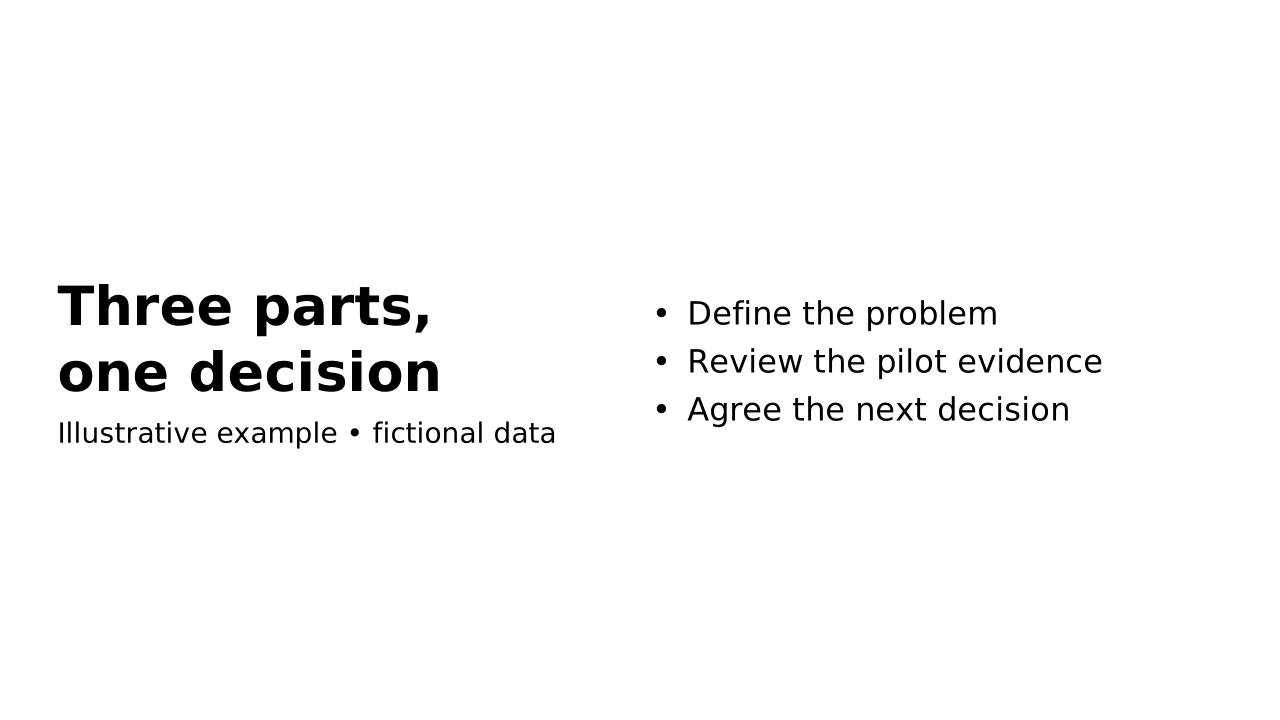
This prepared preview and the OPF describe the same example. Region outlines show measured allocation; toggling them does not change the slide.
Inspect compact default-catalog references. Your host must register the matching catalog; source identifies it without fetching over the network. Copy always includes complete embedded records.
{5 keys
"design": {1 key
"slides": [1 item
{4 keys
"blocks": [1 item
{2 keys
"items": [3 items
"catalogs": {1 key
"default": {1 key
Regions, in reading order
This layout is one list of 2 regions, declared once. The list runs as a row; a split nests a list that runs the other way. Each size is a share of its parent’s width (row) or height (column).
Schematic of the list: each box is drawn in proportion to its size; an auto entry gets a fixed band. Dashed boxes are heading regions.
Row, side by side, left to right. No anchor is written on the layout: body regions start at the top unless they set their own.
- 1title50%
size 1: 50% of the width
Heading region: holds the slide’s title, with its tag and subtitle. It takes a size and no content rules.
- 2items50%
size 1: 50% of the width
- Accepts
- listtext
- Role
- primary
- Flow
- column, up to 6 blocks
- Anchor
- middle (on region)
- Also
- lists flow into columns
Layout structure and reference fields
How automatic composition differs
Try dynamic composition
Explore how a text slide reflows as you change its content and shape. These examples use OPF’s shared composition rules; the copied document includes your choices.
All sample text fits within its content boxes.
View the complete OPF example
{
  "$schema": "https://openpresentation.org/schema/opf/v1",
  "name": "Dynamic composition example",
  "design": {
    "dimensions": {
      "widthInches": 13.333333333333334,
      "heightInches": 7.5
    }
  },
  "slides": [
    {
      "title": "Let the content find its space",
      "composition": {
        "mode": "auto"
      },
      "blocks": [
        {
          "text": "Start with the decision. State what the audience should understand or do."
        },
        {
          "text": "Show the evidence. Give each supporting idea enough space to be read."
        },
        {
          "text": "Make the next step clear. Keep the action specific and easy to remember."
        }
      ]
    }
  ]
}
Composition rules and examples as JSON · Pagination rules and example JSON
Related Layouts
Similar OPF layout slugs with matching content types, spatial patterns, or presentation use cases.
Openers And Closers
Agenda
Set expectations by listing the parts of a talk. Longer agendas flow across columns while preserving their order.
/layouts/agenda
Openers And Closers
Closing
End with the action the audience should take. Include contact details or a brief thank-you when useful.
/layouts/closing
Groups Of Items
FAQ
Answer the questions an audience is likely to ask. Pair each question with a direct answer and group related questions together.
/layouts/faq
Text
List
Present several related points in a clear sequence. Use bullets for independent points or numbered items for an ordered list.
/layouts/list
Openers And Closers
Statement
Give one important assertion room to stand alone. Keep supporting detail on a following slide.
/layouts/statement
Openers And Closers
Cover
Open a presentation with its subject and a short introduction. Add a picture when it helps establish the context.
/layouts/cover