Layout Pattern
Venn
Show overlap among 1 to 7 sets using one flat list of short labels. The list order identifies the sets; no overlap values are implied. One to four sets have labels inside the circles, and five to seven beside them. Long labels, nested entries or unsupported counts retain the complete list with a finding instead of shrinking the text.
How to Use It
Show overlap among 1 to 7 sets using one flat list of short labels. The list order identifies the sets; no overlap values are implied. One to four sets have labels inside the circles, and five to seven beside them. Long labels, nested entries or unsupported counts retain the complete list with a finding instead of shrinking the text.
Preview + source
Explore this layout
Show how a few sets overlap, one short label per set; say in the title what the overlap means.
All people, quotations and business figures in these examples are illustrative.
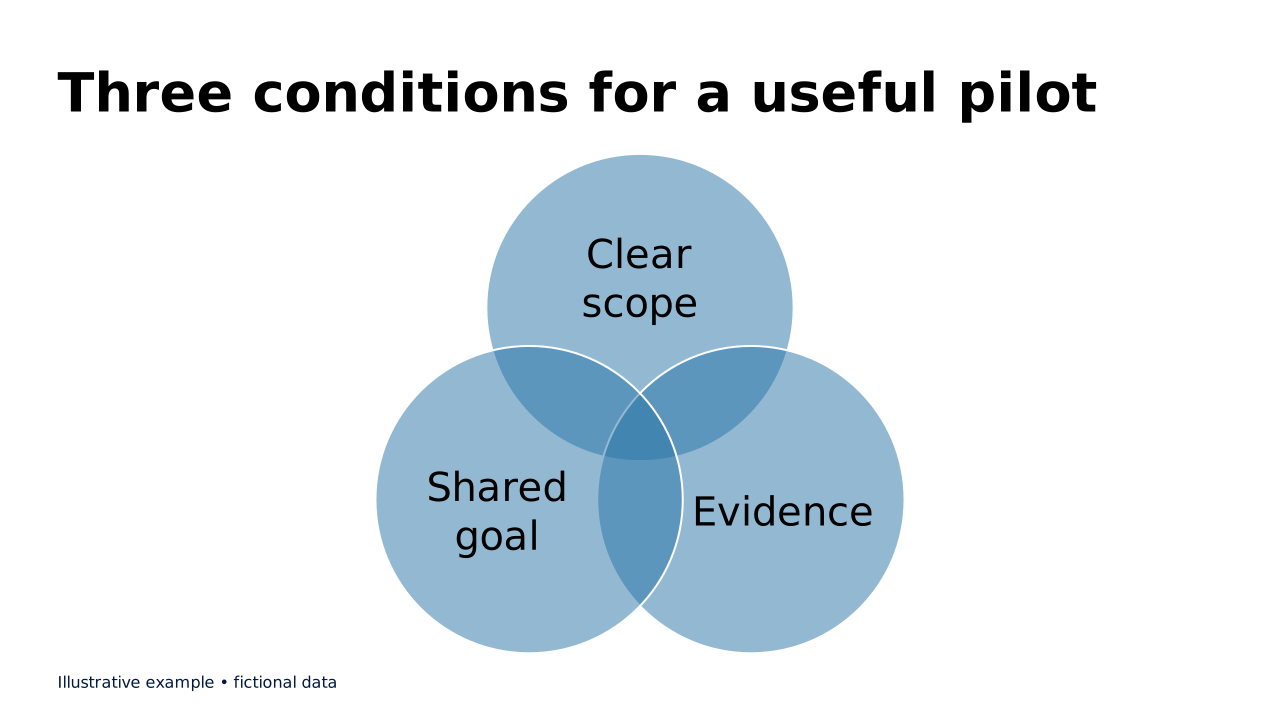
This prepared preview and the OPF describe the same example. Region outlines show measured allocation; toggling them does not change the slide.
Inspect compact default-catalog references. Your host must register the matching catalog; source identifies it without fetching over the network. Copy always includes complete embedded records.
{5 keys
"design": {2 keys
"footer": {1 key
"start": {1 key
"slides": [1 item
{3 keys
"blocks": [1 item
{2 keys
"catalogs": {1 key
"default": {1 key
Regions, in reading order
This layout is one list of 2 regions, declared once. The list runs as a column; a split nests a list that runs the other way. Each size is a share of its parent’s width (row) or height (column).
Schematic of the list: each box is drawn in proportion to its size; an auto entry gets a fixed band. Dashed boxes are heading regions.
Column, stacked, top to bottom. No anchor is written on the layout: body regions start at the top unless they set their own.
- 1titleauto
auto, the height the content needs
Heading region: holds the slide’s title, with its tag and subtitle. It takes a size and no content rules.
- 2sets100%
size 1: 100% of what the auto entries leave
- Accepts
- list
- Role
- primary
- Flow
- none, up to 1 block
- Anchor
- top (default)
Layout structure and reference fields
How automatic composition differs
Try dynamic composition
Explore how a text slide reflows as you change its content and shape. These examples use OPF’s shared composition rules; the copied document includes your choices.
All sample text fits within its content boxes.
View the complete OPF example
{
  "$schema": "https://openpresentation.org/schema/opf/v1",
  "name": "Dynamic composition example",
  "design": {
    "dimensions": {
      "widthInches": 13.333333333333334,
      "heightInches": 7.5
    }
  },
  "slides": [
    {
      "title": "Let the content find its space",
      "composition": {
        "mode": "auto"
      },
      "blocks": [
        {
          "text": "Start with the decision. State what the audience should understand or do."
        },
        {
          "text": "Show the evidence. Give each supporting idea enough space to be read."
        },
        {
          "text": "Make the next step clear. Keep the action specific and easy to remember."
        }
      ]
    }
  ]
}
Composition rules and examples as JSON · Pagination rules and example JSON
Related Layouts
Similar OPF layout slugs with matching content types, spatial patterns, or presentation use cases.
Groups Of Items
Chevrons
Show 1 to 8 stages that follow one another, each leading into the next. Write one short list entry per stage, in order; a word or two reads best inside a chevron.
/layouts/chevrons
Groups Of Items
Cycle
Show 2 to 8 steps that repeat, where the last leads back to the first (a review loop, a product lifecycle, a feedback cycle). Write one short list entry per step, in order; the first is drawn at the top and the rest clockwise, with an arrow from each to the next.
/layouts/cycle
Groups Of Items
FAQ
Answer the questions an audience is likely to ask. Pair each question with a direct answer and group related questions together.
/layouts/faq
Groups Of Items
Flow
Show 1 to 8 steps that follow one another, each a box with an arrow to the next. Write one short list entry per step, in order.
/layouts/flow
Groups Of Items
Hierarchy
Show a classification or work breakdown with 1 to 8 short entries. Use one list: the first entry is the level-zero root and each child sets its zero-based level. Keep parents before children and do not skip a depth. Unsupported forests, jumps, descriptions or long labels retain the complete list with a finding instead of changing relationships or shrinking text.
/layouts/hierarchy
Groups Of Items
Inverted pyramid
Show 1 to 8 levels narrowing from the broad top (the many, the starting pool) to the tip below (the selected few, the result). Write one short list entry per level in top-to-bottom order. Export uses editable native shapes.
/layouts/inverted-pyramid